

How to review AI teaching resources for your class
An AI draft can give you a useful starting point. Before sharing it, check that it teaches the right learning, gives clear instructions and suits your class. A polished page can still contain a mistake.
Start with five checks: Curriculum, Reliability, Accessibility, Fairness and Teacher judgement. CRAFT is a way to remember them. It is a checklist for this article, not an official approval or a promise that a resource has no errors.
The Australian Framework for Generative AI in Schools offers guidance on responsible use. Keep your school’s rules and your students’ needs in view.
Five useful checks
| Check | Ask yourself |
|---|---|
| Curriculum | Does this teach and assess the learning I chose? |
| Reliability | Are the facts, answers and instructions correct? |
| Accessibility | Can students read, understand and use it? |
| Fairness | Does it give my students a fair chance to show their learning? |
| Teacher judgement | What needs changing before I use it? |
You do not need a long report for every draft. Compare the parts that matter. When something is unclear, check that part against a reliable source or discuss it with a colleague.
C: compare the learning with the task
ACARA’s planning guidance explains how content descriptions and achievement standards guide planning. Read the selected wording, year level and curriculum version. A correct code alone does not show that a task assesses the learning.
ACARA’s curriculum and assessment guidance connects intended learning with evidence from students. Ask where students will show each skill. Check the task, its guide and any resources together.
Example 1: a HASS guide and its task
This Year 6 HASS Planning Wizard example includes a report about water use in two fictional communities. One selected achievement standard sentence is:
Read the full Year 6 HASS achievement standard. In the captured guide, find the source skill in the Skills row at C. A separate teacher criterion asks students to label their evidence.
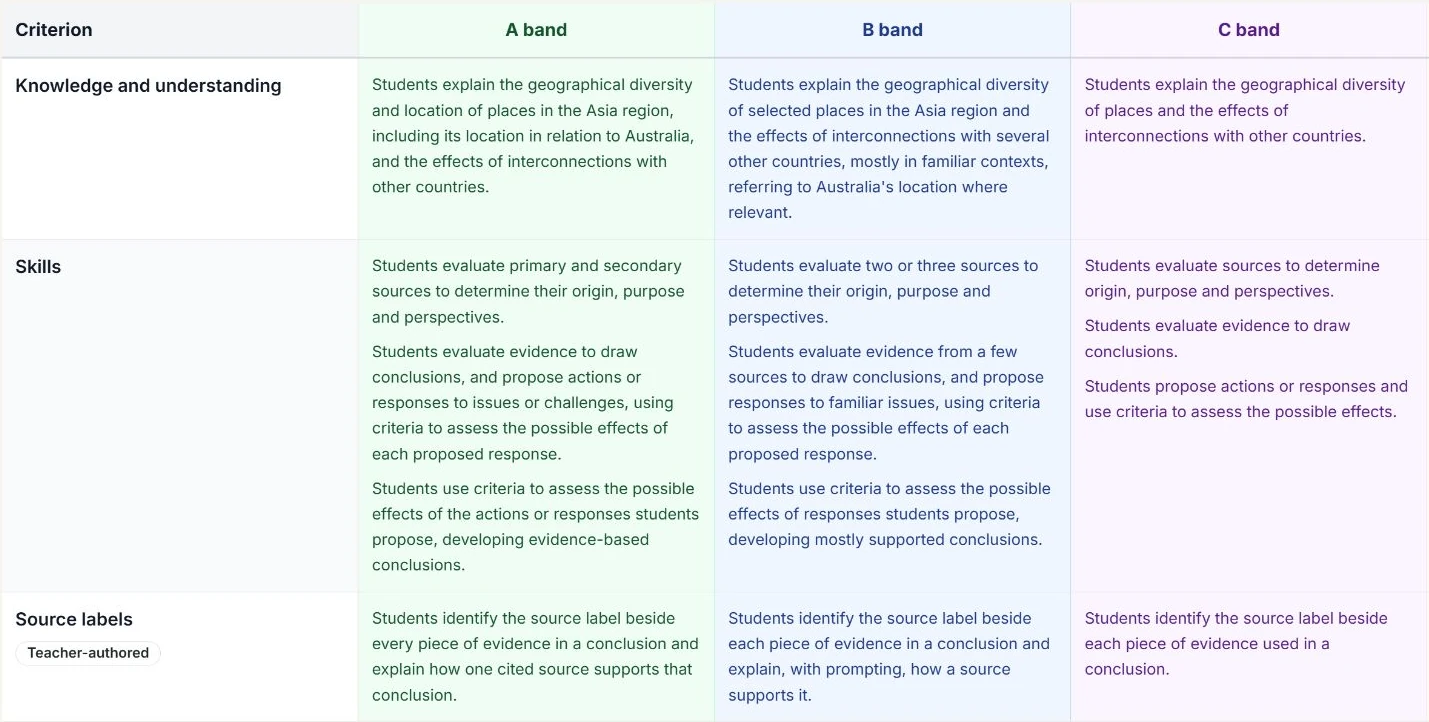
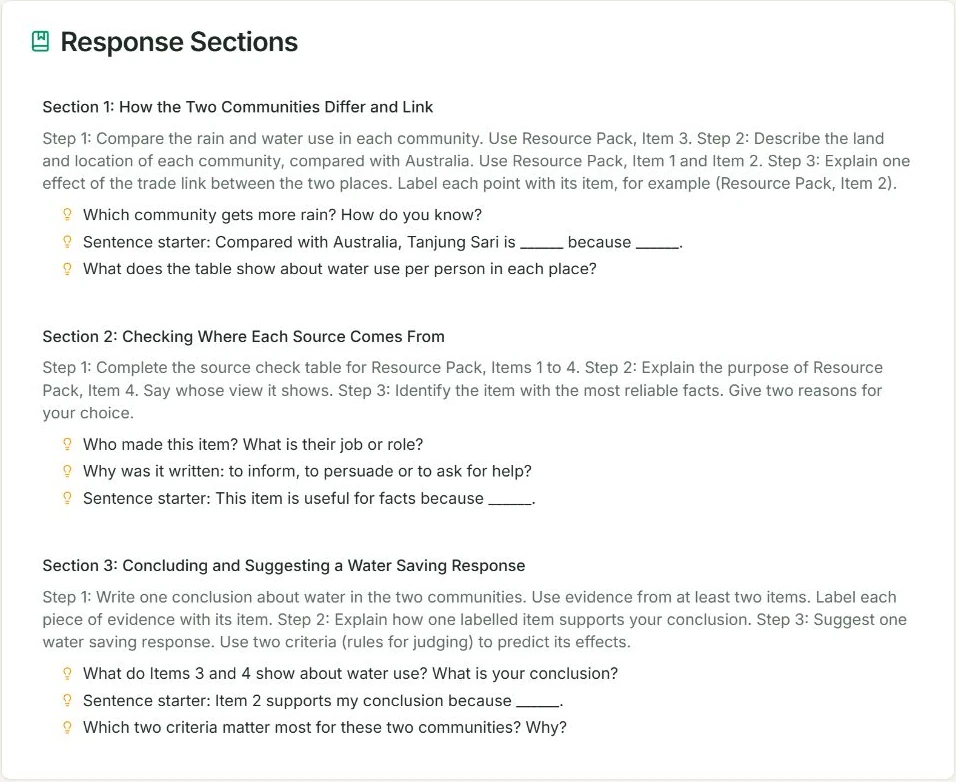
This is a useful connection to look for: the guide names a skill and the task asks students to use it. Still read the actual sources and teacher answers. Check that students have enough information to answer without the resource giving the answer away.
These images show saved links. Review the materials and timings in the wider plan before teaching; saved links do not prove the whole pack is ready to teach. You can follow the connected Planning Wizard example for more context.
Example 2: a Mathematics wording suggestion
This separate Year 5 Mathematics guide uses Auto Assign to suggest A band wording about time. The captured edit adds comparing time systems and solving practical problems.
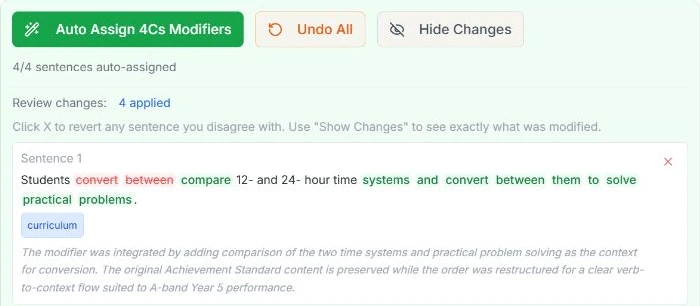
Ask whether the task actually includes those practical problems. If it only asks students to convert a time, the extra demand may not fit. Check your task before keeping the wording. The screenshot alone cannot tell us whether the suggestion is suitable.
Keep, edit or undo the suggestion. Auto Assign drafts A; it does not approve the guide or finish every band. Read the 4Cs marking guide example to see the full explanation.
R: check facts, answers and pictures
Check important facts against a reliable source. Work through the questions and answers yourself. Make sure instructions, tables and model answers agree. A second AI answer is not the same as checking an original source.
Example 3: a History slide and its picture
This Year 8 History slide comes from a separate Quick Lesson deck about the Black Death. It makes a claim about fewer workers, wages and working conditions.
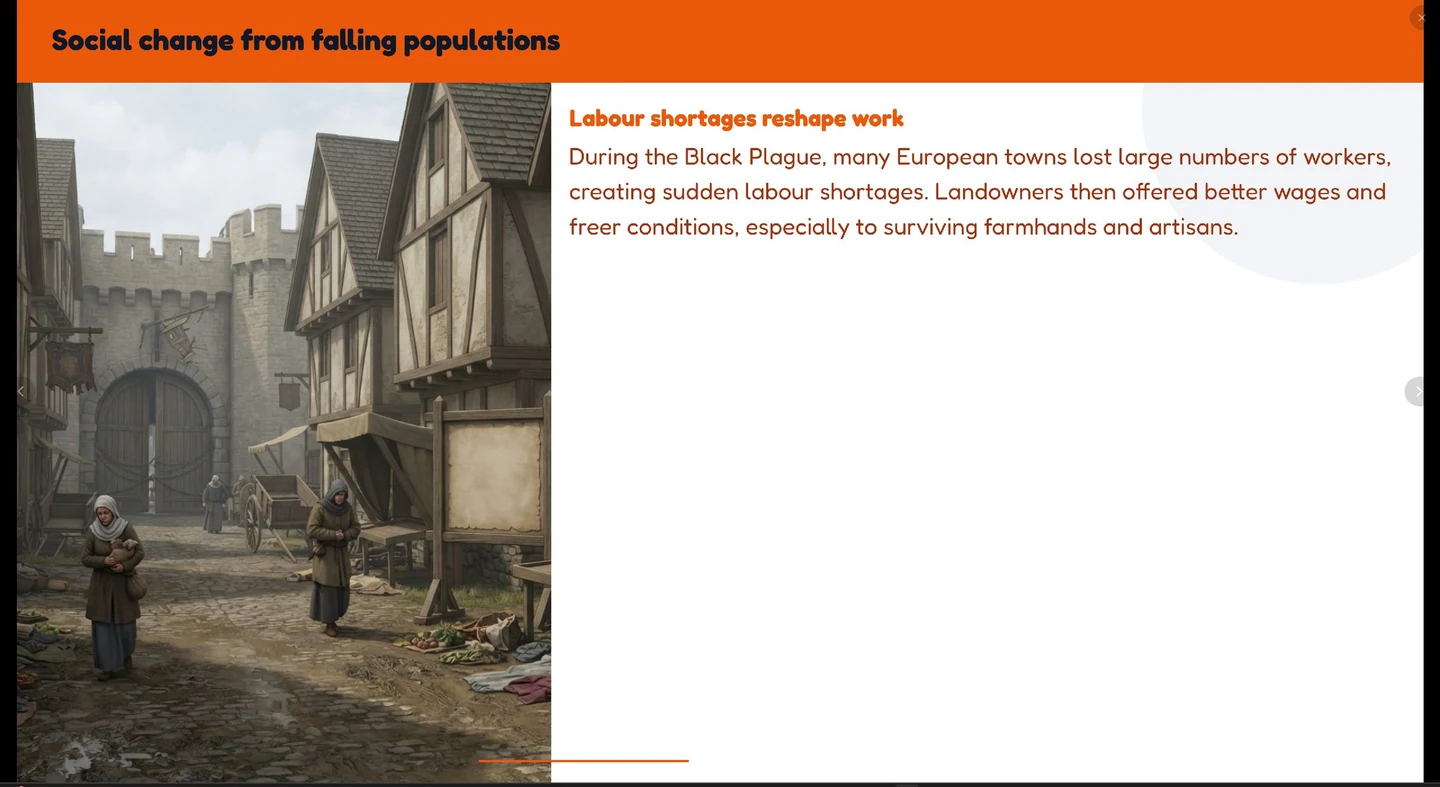
The wage claim needs a limit. In England, the 1351 Statute of Labourers tried to hold down pay and restrict workers. A labour shortage did not mean freedom for every worker. This law cannot show what happened across all of Europe.
Read the 1351 law in Fordham University’s sourcebook. It is a translated law from England. It shows the rules lawmakers wanted, not how every worker or employer behaved. Keep the original screenshot separate from this source check.
Use the picture to set the scene if it helps. Do not use it as evidence of what a medieval street looked like. Check image sources and permission to use them. For maps, graphs and factual diagrams, choose an accurate source rather than relying on an AI drawing.
Also check the whole deck for repeated points, examples from the wrong place and changes in year level. See the lesson slides article for the topic, outline, editor and review steps.
A: make the resource easy to use
W3C’s design guidance covers readable text, clear structure and contrast. Its image guidance explains text alternatives for meaningful pictures.
- Read the instructions as a student would. Are the steps clear?
- Check text size and contrast on the screen or page students will use.
- Use labels as well as colours in diagrams.
- Describe important pictures and provide suitable alternatives.
- Make the wording clearer without removing the learning students need to show.
For the History slide, try it on the classroom display. If the text is hard to read, shorten the points or increase the size. A good picture cannot make up for an explanation students cannot access.
F: check the fit for your students
Look for stereotypes, narrow assumptions and examples that could exclude or misrepresent people. Check names, images and whose views are missing. Choose a respectful context that makes sense for your class.
Then check the practical details. Can students complete the task with the time, equipment and access they have? Do they need background knowledge, a source sheet or a model that has not been provided?
Keep the intended learning and level of thinking. Change an unnecessary barrier, not the skill you want to assess. Use your school’s adjustment process when a student needs a different way to take part.
Keep student information private
The OAIC’s AI privacy guidance recommends keeping personal information, especially sensitive information, out of publicly available AI chatbots. Use tools and accounts approved by your school.
Avoid adding student names, health details, behaviour notes or other private information to a prompt. Removing a name may not be enough if the rest of the details identify the student. Check your school’s rules before uploading student work or files.
Check the student and teacher copies
- Make sure the task asks for the learning named in its guide.
- Check that the resources support the questions without giving away the assessed answers.
- Keep model answers and teacher notes separate from student materials.
- State the help and AI use students are allowed, following school policy.
- Check that practice and feedback happen before a final judgement.
T: decide what to change next
Use the existing edit and review options to make the resource fit. Check the changed part again. An automatic check or an AI suggestion does not replace reading what students will receive.
- Keep the parts that match the learning and your class.
- Fix unclear wording, unsupported claims or missing materials.
- Read the student version again after changes.
- Preview the actual download before sharing it.
If you are not sure about a key claim or assessment decision, check the source or ask a colleague. Keep a short note of important changes when sharing a resource with your team.
Before you use it
The examples here show what to look at. They are not an approval of every part of the saved resources, a completed correction or a check of their exported files.
You can make individual resources in Lite or keep curriculum, guides, assessments, units and lessons together in the Planning Wizard. Lite resources do not automatically become Planning Wizard records.
Sources and further reading
- Planning, teaching, assessing and reporting, Australian Curriculum. Page date not stated. Accessed 21 October 2026.
- Aligning curriculum and assessment, Australian Curriculum. Page date not stated. Accessed 21 October 2026.
- Designing for Web Accessibility, W3C Web Accessibility Initiative. Updated 16 July 2024. Accessed 2 September 2026.
- Images Tutorial, W3C Web Accessibility Initiative. Updated 8 April 2026. Accessed 2 September 2026.
- Australian Framework for Generative AI in Schools, Australian Government Department of Education. Modified 17 June 2025. Accessed 21 October 2026.
- Guidance on privacy and the use of commercially available AI products, Office of the Australian Information Commissioner. Current page. Accessed 2 September 2026.
- Statute of Laborers, 1351, Fordham University Internet History Sourcebooks. 1351 law in a translation published in 1915. Accessed 21 October 2026.